Setup OpenClaw 2.0 with Gemini in Under 60 Seconds
Five commands, zero fluff: install OpenClaw 2.0 (v2026.8.1), link Gemini 3.8 Flash, our fastest (up to +300 token/sec) agentic model for coding and agents, and start chatting with live Google search grounding in under a minute.
What is OpenClaw 2.0?#
OpenClaw is a personal AI assistant that actually does things. It runs on your devices, in your chats, with your rules.
- Chat from anywhere: Chat from the browser Control UI, Telegram, Discord, WhatsApp, or Slack.
- Integrated tooling: Browser automation, terminal execution, filesystem access, and web search grounding.
- Remember: Keeps memory across sessions so it knows your preferences, projects, and people.
OpenClaw 2.0 (v2026.8.1) is the largest update yet: simpler install, a rebuilt browser app that opens straight into a conversation, and setup you can finish by talking to your Claw. Full notes: v2026.8.1.
Prerequisites#
- Node.js:
Node 26(recommended) orNode 22.22.3+/24.15+(node --version). - Gemini API Key: Grab a free key from Google AI Studio.
1. Install OpenClaw 2.0#
Install OpenClaw globally via npm:
Bash
Verify your installation:
Bash
# Output: OpenClaw 2026.8.1 (ea80657)
2. Configure Gemini Authentication#
Export your Gemini API key in your current shell:
Bash
To persist it into OpenClaw's local profile store:
Bash
(Note: You can safely ignore any onboarding tip about configuring a Brave API key—Gemini's built-in Google Search grounding is used automatically.)
3. Set Gemini 3.8 Flash as Default#
Set Gemini 3.8 Flash as the default agent model:
Bash
(Note: If OpenClaw displays a warning that the model is not in the local catalog, it is safe to ignore. The model is dynamically resolved and validated against Google AI Studio in the next step.)
Verify model discovery and authentication status:
Bash
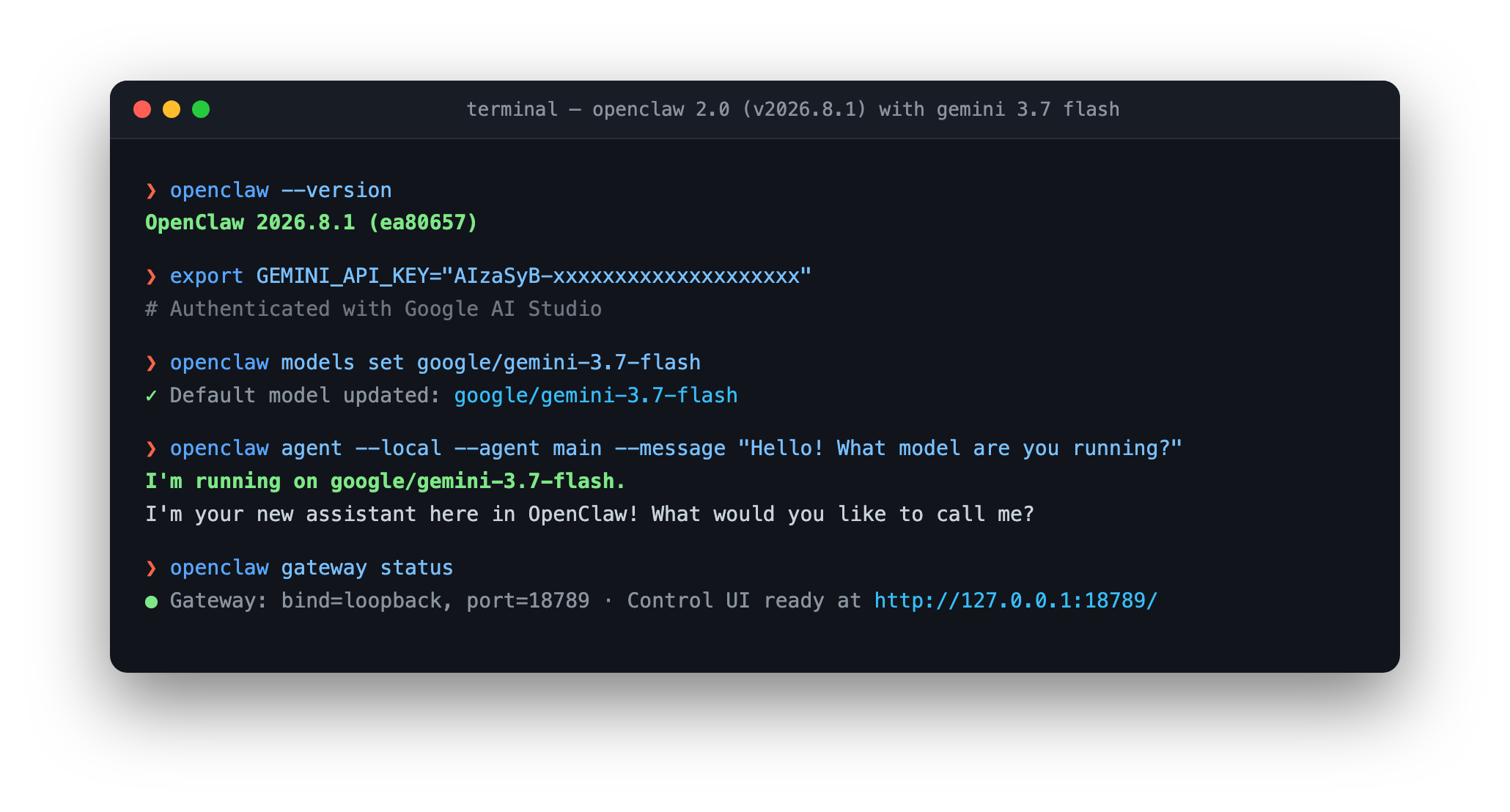
4. Test Inference via CLI#
Run a standalone agent turn in your terminal:
Bash
Output:
I am currently running on google/gemini-3.8-flash.
What would you like to call me?
5. Start the Gateway & Launch Control UI#
Set the gateway to local mode and start it:
Bash
(To run as a persistent background daemon instead: openclaw gateway install && openclaw gateway start. To stop it: openclaw gateway stop --force)
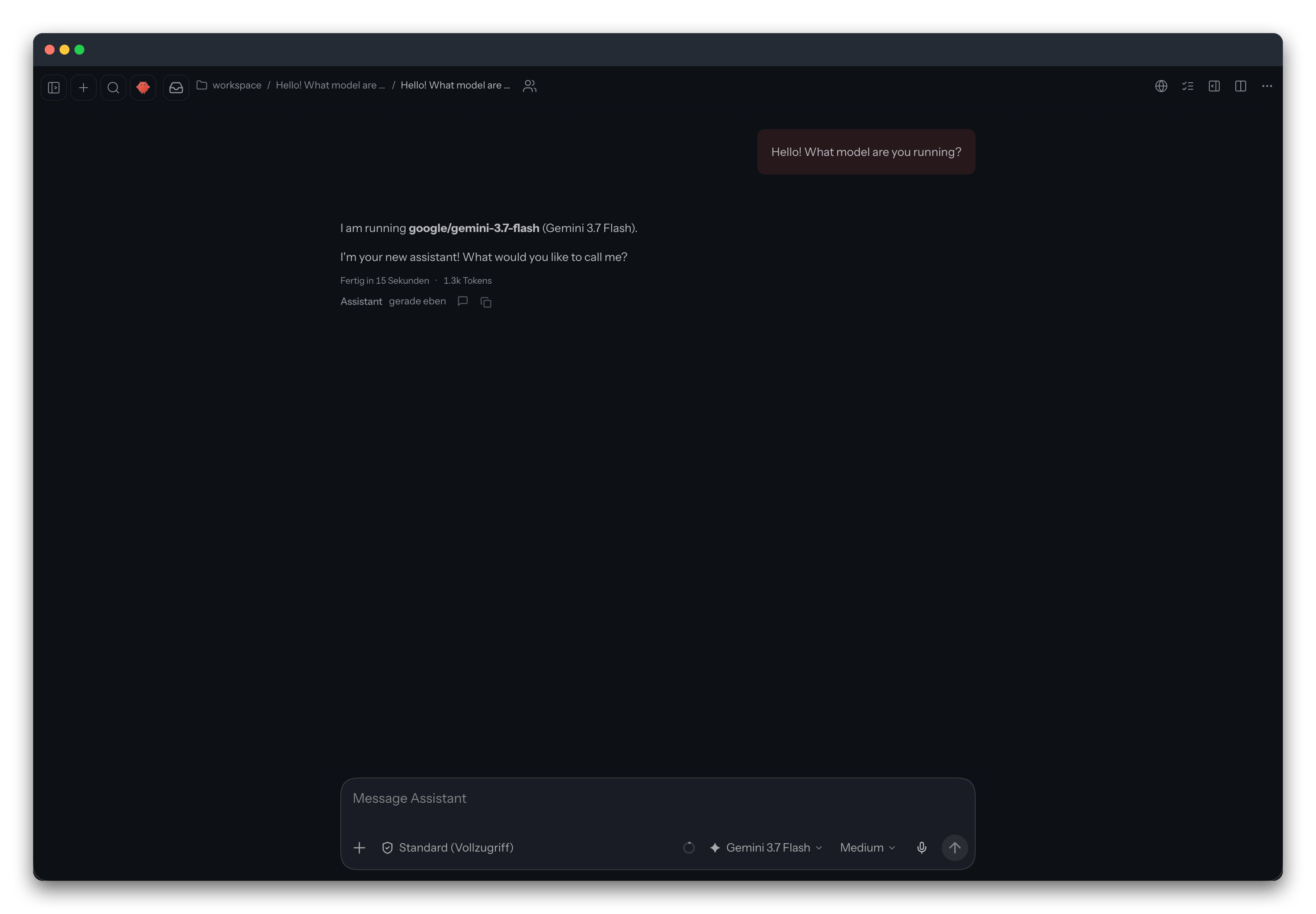
Open the Control UI in your browser:
Bash
The browser will open to http://127.0.0.1:18789/ authenticated with your local session token:
Next Steps#
Google Search Grounding (Enabled by Default)#
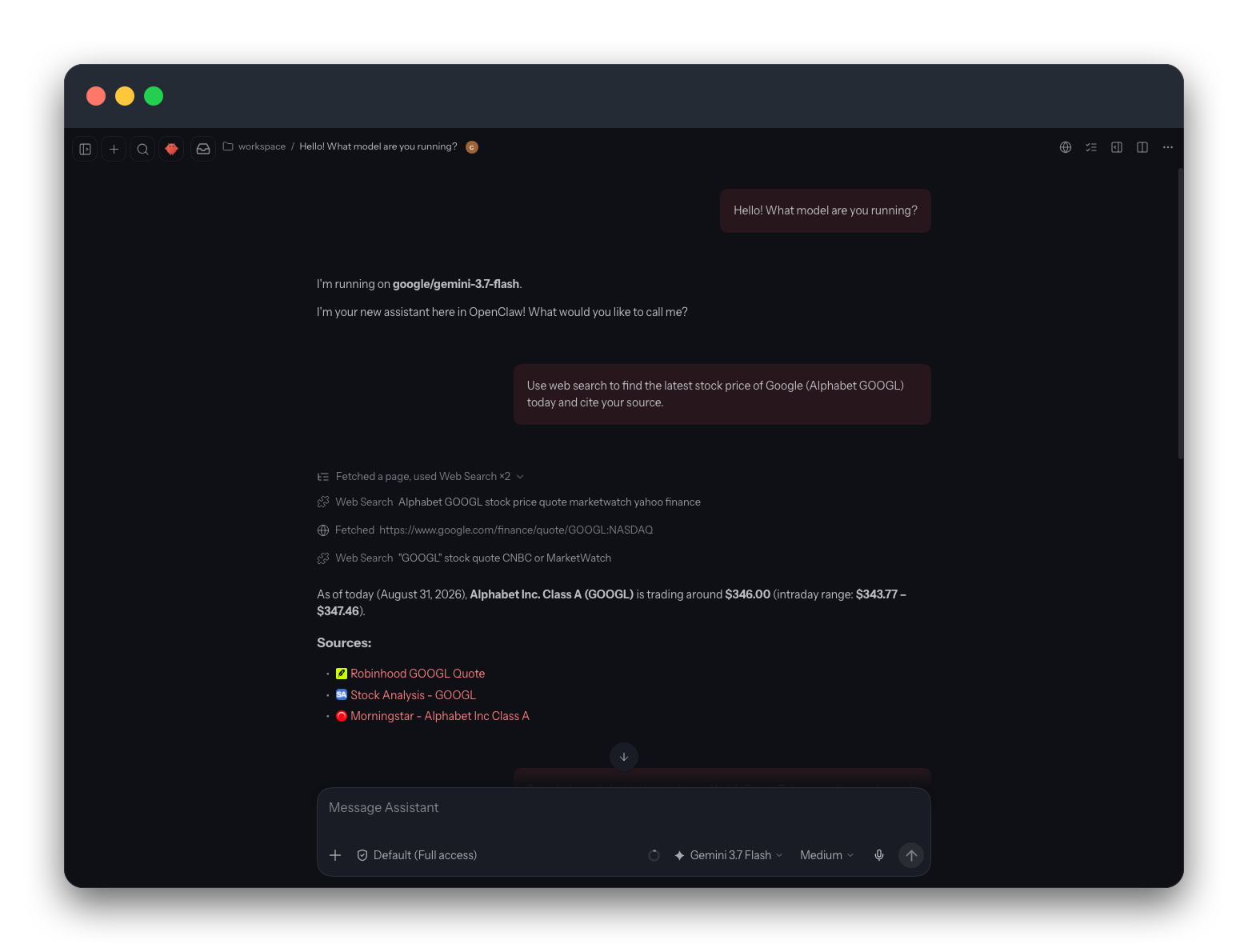
Google Search grounding is enabled by default when GEMINI_API_KEY is present. No extra configuration or search keys are required.
-
Test it directly via CLI:
Bash
-
In chat sessions, Gemini autonomously runs web searches with citations whenever fresh context is needed.
Leveraging Other Gemini Capabilities#
- Image Generation: Set Google's image model using
openclaw models set-image google/gemini-3.1-flash-image. - Video Generation: Generate 4–8s videos with
google/veo-3.1-fast-generate-preview. - Music Generation: Prompt-driven music via
google/lyria-3-clip-preview. - Text-to-Speech: Gemini batch TTS with natural language style prompting (
gemini-3.1-flash-tts-preview). - Realtime Voice: Low-latency bidirectional voice streams via Gemini Live API (
gemini-3.1-flash-live-preview).
Full Google Documentation.
Connecting Chat Channels#
Connect your Gemini assistant to your favorite messaging apps using simple CLI commands:
- Browse all channels:
openclaw channels list --all - Interactive setup:
openclaw channels add - Telegram:
openclaw channels add --channel telegram --token "<BOT_TOKEN>" - WhatsApp (QR code):
openclaw channels login --channel whatsapp - Discord:
openclaw channels add --channel discord --token "<BOT_TOKEN>" - Verify channel status:
openclaw channels status --probe