Review
The bottleneck in coding agents is no longer writing code, but reviewing it. The Amp VS Code extension now has a new panel that enables humans to review agent-generated code more effectively.
Why build this?
Existing methods for reviewing agent-generated code fall into a few buckets:
- Approve each change before it's applied
- Read each edit the agent makes
- View changes in a dedicated code review tool like GitHub PRs
If you're using coding agents heavily, all these options start to feel slow and tedious. Options 1 and 2 are too finegrained, wasting time on micromanaging intermediate changes the agent may decide to overwrite later. Option 3 pushes review too far down the line and requires reviewing substantial changes in an interface that doesn't let you edit or navigate the code.
The review panel is designed to streamline the type of review that takes up more and more time with agentic coding.
The general flow goes like this:
-
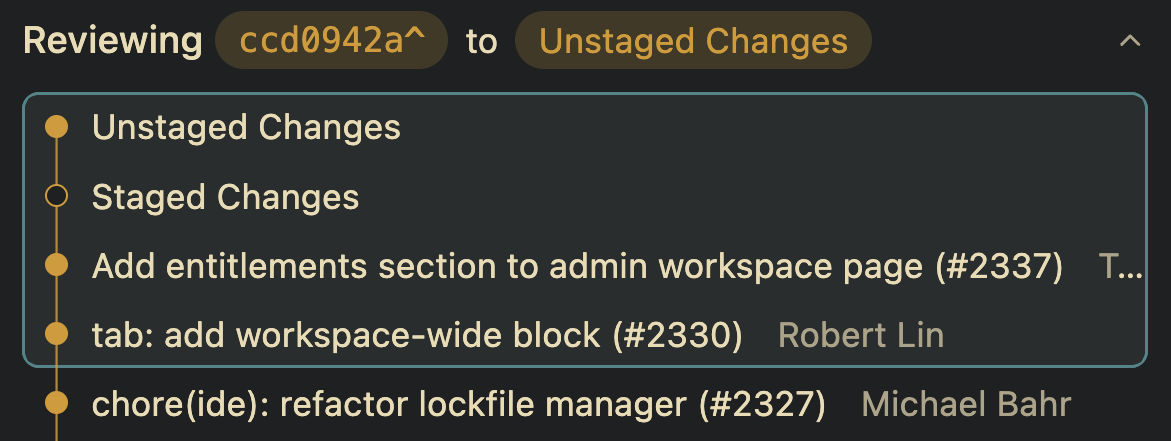
Select the commit range you want to review.
-
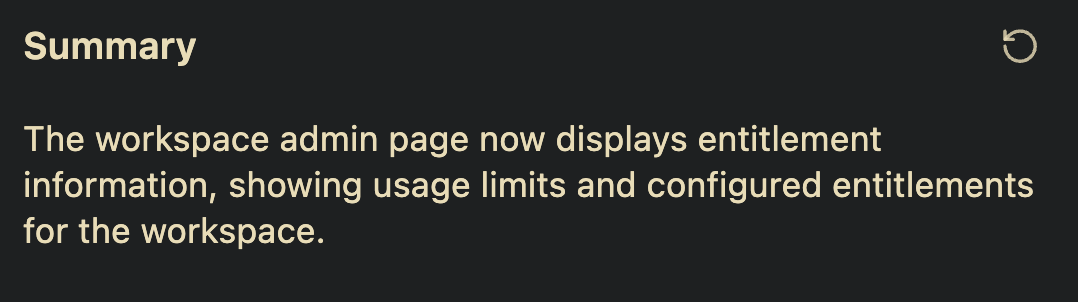
Quickly read the AI summary of the changes for a high-level overview.
-
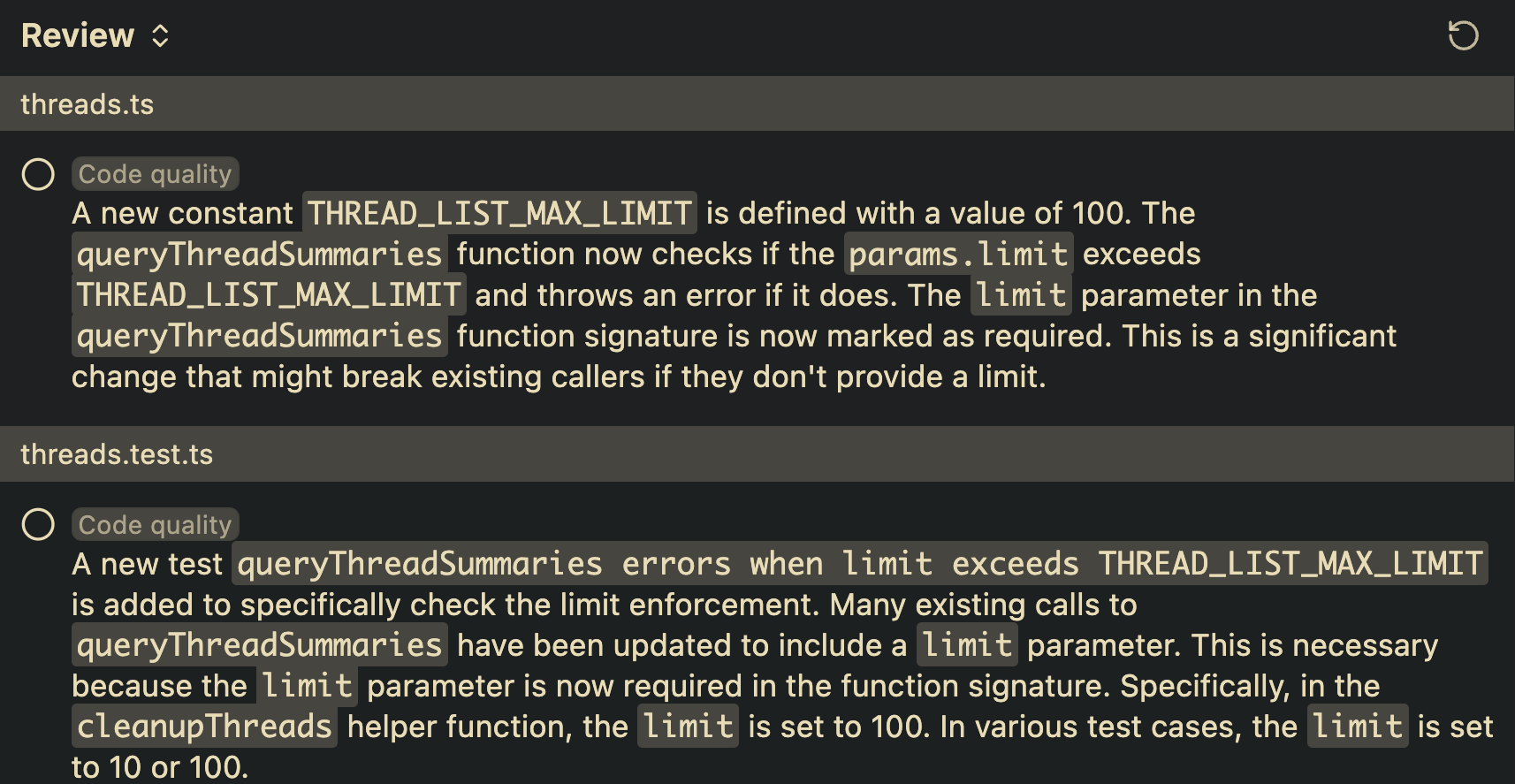
Request a tour of the changes that also prescribes a recommended order in which to read the files.
-
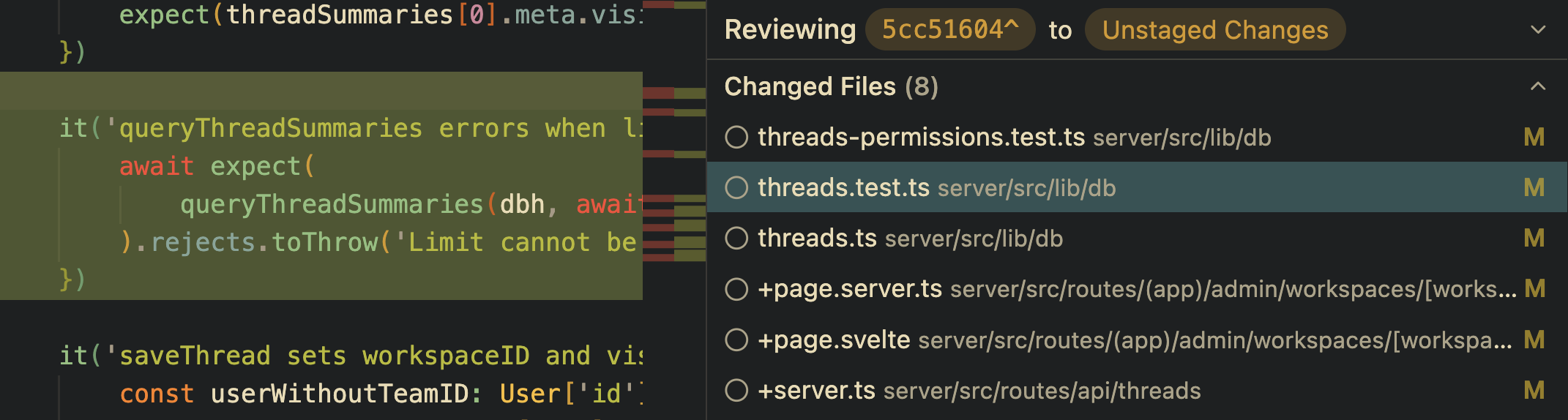
Open, read, and edit full file diffs, with code navigation.
-
Stage or commit your changes with an auto-generated commit message.
It's still early and experimental, but we've already found this interface to be quite helpful. To use it, open the Amp VS Code extension and click the icon in the navigation bar in the Amp panel as shown in the video at the top.